
Play Asset Delivery
Play Asset Delivery uses asset packs, which are hosted and served on Google Play removing the need to use a content delivery network (CDN) to get your game resources to players. Through Dynamic Delivery, you can customize how and when each asset pack is downloaded onto a device according to three delivery modes: install-time, fast-follow, and on-demand. Asset packs can be used to download Live Update zip archives or individual files such as images, sounds, json data etc
Installation
To use Play Asset Delivery in your Defold project, add a version of the Play Asset Delivery extension to your game.project dependencies from the list of available Releases. Find the version you want, copy the URL to ZIP archive of the release and add it to the project dependencies.
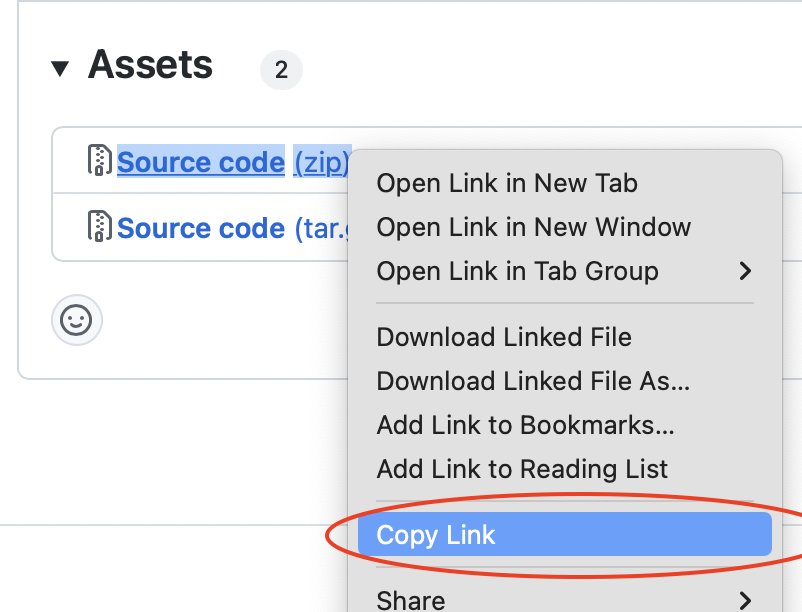
Select Project->Fetch Libraries once you have added the version to game.project to download the version and make it available in your project.
Creating asset packs
Creating an asset pack involves using the Android tools aapt2 and the JDK tool jarsigner. Both are included in the Defold command line tool bob.jar and can be used directly from Bob. There are four steps to create one or more asset packs and include them in the application bundle:
- Compile assets
- Create asset pack
- Add asset pack to application bundle
- Sign the application bundle
Compile assets
The first step is to run aapt2 to compile the assets used in an asset pack. The aapt2 command takes an AndroidManifest.xml and a folder of assets as input and outputs processed files to an output folder.
The AndroidManifest.xml configures the asset pack’s identifier and delivery mode:
<?xml version="1.0" encoding="utf-8"?>
<manifest xmlns:dist="http://schemas.android.com/apk/distribution" package="com.defold.pad" split="asset_pack_1">
    <dist:module dist:type="asset-pack">
        <dist:delivery>
            <dist:on-demand/>
        </dist:delivery>
        <dist:fusing dist:include="true"/>
    </dist:module>
</manifest>
Pay attention to the <dist:delivery> tag which specifies the delivery mode.
The aapt2 command will copy the assets and write a binary version of the AndroidManifest.xml to the output folder. The command will also produce a resources.pb, but this file is not needed for assets packs.
java -cp bob.jar com.dynamo.bob.tools.AndroidTools aapt2 link --proto-format --output-to-dir -o out --manifest AndroidManifest.xml -A assets
The resulting files and folders:
out
├── assets
│   └── <file(s)>
└── AndroidManifest.xml   <-- binary version from aapt2
└── resources.pb          <-- not needed
Create asset pack
The next step is to create an asset pack zip archive from the compiled assets:
cd out
# resources.pb is not needed for the asset pack
rm resources.pb
# move compiled AndroidManifest.xml to correct location
mkdir manifest
mv AndroidManifest.xml manifest/AndroidManifest.xml
# create an uncompressed zip archive of asset pack
zip -r -0 ../assetpack.zip .
This will produce a zip archive with the following structure:
assetpack.zip
├── assets
│   └── <file(s)>
└── manifest
    └── AndroidManifest.xml
Add asset pack to the application bundle
When the asset pack has been produced it needs to be merged into the the main application bundle. Unzip the asset pack archive it and write the files to the main application bundle.
# unzip asset pack to folder 'assetpack'
unzip assetpack.zip -d out/assetpack
# -D do not write directory entries to the archive
cd out
zip -r -0 -D path/to/main.aab .
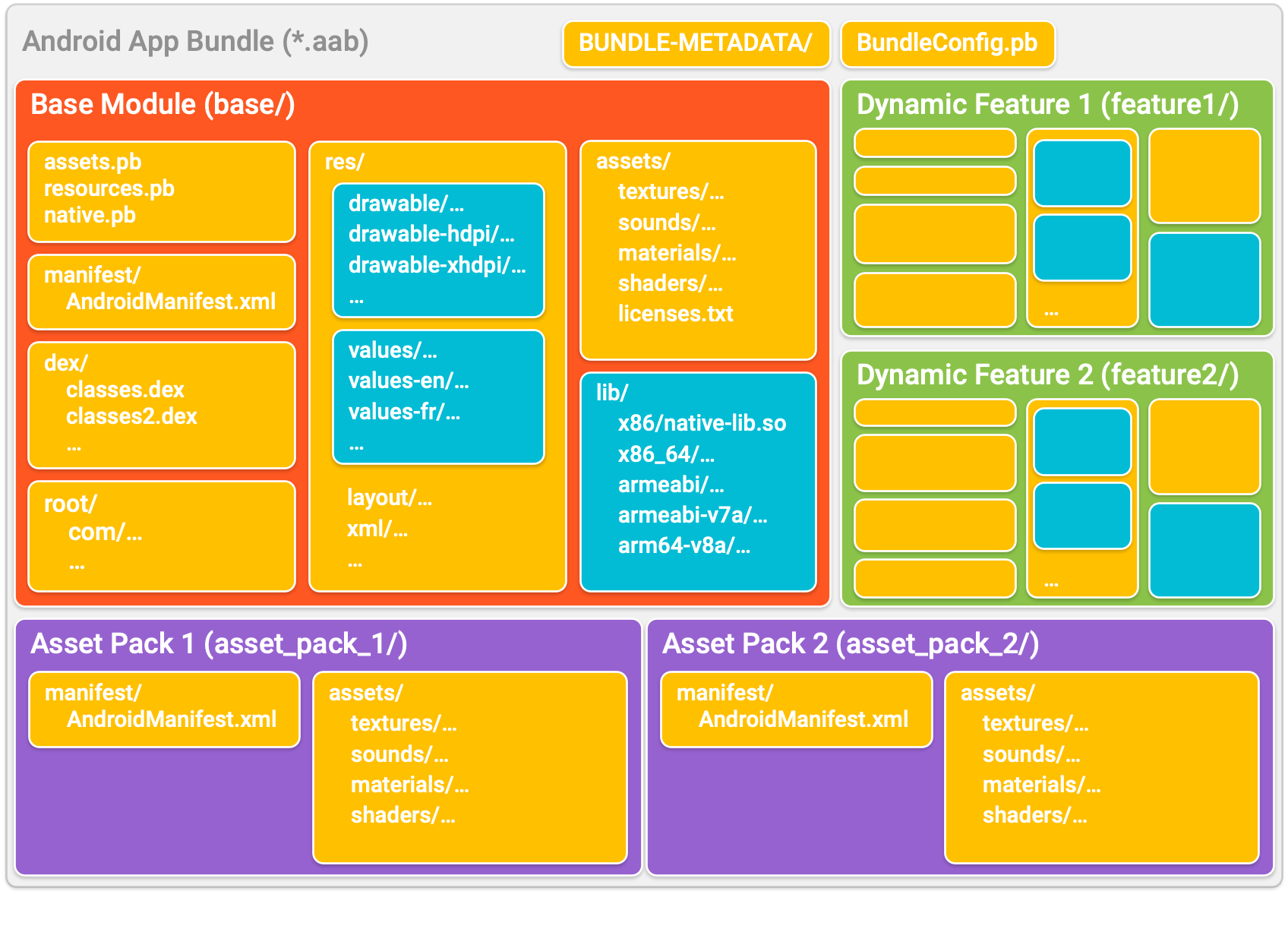
To better illustrate the final folder structure inside the main application bundle, please refer to the Android Application Bundle Format reference image (source):
Resign the main application bundle
The final step involves resigning the main application bundle:
java -cp bob.jar com.dynamo.bob.tools.AndroidTools jarsigner -verbose -keystore debug.keystore -storepass android -keypass android main.aab androiddebugkey
Note that jarsigner can also load the keystore and key password from a file:
java -cp bob.jar com.dynamo.bob.tools.AndroidTools jarsigner -verbose -keystore debug.keystore -storepass file:storepass.txt -keypass file:keypass.txt main.aab androiddebugkey
Usage
The Play Asset Delivery API is available in Lua through the pad.* namespace of functions:
pad.set_listener(function(_, event)
	print(event.pack_name)
	print(event.event_type) -- see pad.EVENT_XYZ
	print(event.extra)
	if event.event_type == pad.EVENT_PACK_STATE_UPDATED then
		local status = pad.get_pack_status(event.pack_name) -- see pad.STATUS_XYZ
		if status == pad.STATUS_TRANSFERRING then
			print(pad.get_pack_bytes_downloaded(event.pack_name))
			print(pad.get_pack_total_bytes_to_download(event.pack_name))
			print(pad.get_pack_transfer_progress_percentage(event.pack_name))
		elseif status == pad.STATUS_COMPLETED then
			local location = pad.get_pack_location(event.pack_name)
			local f = io.open(location .. "/myfile.json", "rb")

		end
		print(pad.get_pack_error_code(event.pack_name)) -- see pad.ERRORCODE_XYZ
	end
end)

-- get pack state, will call event listener with pad.EVENT_PACK_STATE_UPDATED
pad.get_pack_state("asset_pack_1")

-- start fetching asset pack
-- progress and status will be reported in the listener
pad.fetch("asset_pack_1")

-- cancel download of a pack
pad.cancel("asset_pack_1")

-- remove an on-demand packed that has been fetched
pad.remove_pack("asset_pack_1")
How to use with LiveUpdate
Play Asset Delivery can be used together with LiveUpdate to deliver a LiveUpdate archive as part of an asset pack.
For on-demand and fast-follow asset packs the pack first needs to be be fetched before it can be mounted:
pad.set_listener(function(_, event)
	if event.event_type == pad.EVENT_PACK_STATE_UPDATED then
		local status = pad.get_pack_status(event.pack_name)
		if status == pad.STATUS_COMPLETED then
			local location = pad.get_pack_location(event.pack_name)
			local path = "zip:" .. location .. "/liveupdatearchive.zip"
			liveupdate.add_mount("levels", path, 10, function (result) end)
		end
	end
end)

pad.fetch("asset_pack_1")
For install-time asset packs there is no need to fetch them since they are immediately available when the game is installed. Instead install-time asset packs can be accessed using a special zip archive path zip:/android_asset/myasset.zip indicating that the archive should be mounted using the Android AssetManager:
local path = "zip:/android_asset/liveupdatearchive.zip"
liveupdate.add_mount("levels", path, 10, function (result) end)
Example
Refer to the example project to see a complete example of how the integration works.
Source code
The source code is available on GitHub
API reference
- Play Asset Delivery
- Installation
- Creating asset packs
- Compile assets
- Create asset pack
- Add asset pack to the application bundle
- Resign the main application bundle
- Usage
- How to use with LiveUpdate
- Example
- Source code
- English
- 中文 (Chinese)
- Español (Spanish)
- Français (French)
- Νεοελληνική γλώσσα (Greek)
- Italiano (Italian)
- Język polski (Polish)
- Português (Portuguese)
- Русский (Russian)
- Українська (Ukranian)
Did you spot an error or do you have a suggestion? Please let us know on GitHub!
GITHUB